I template Figma più popolari per screenshot e mockup di app (2026)
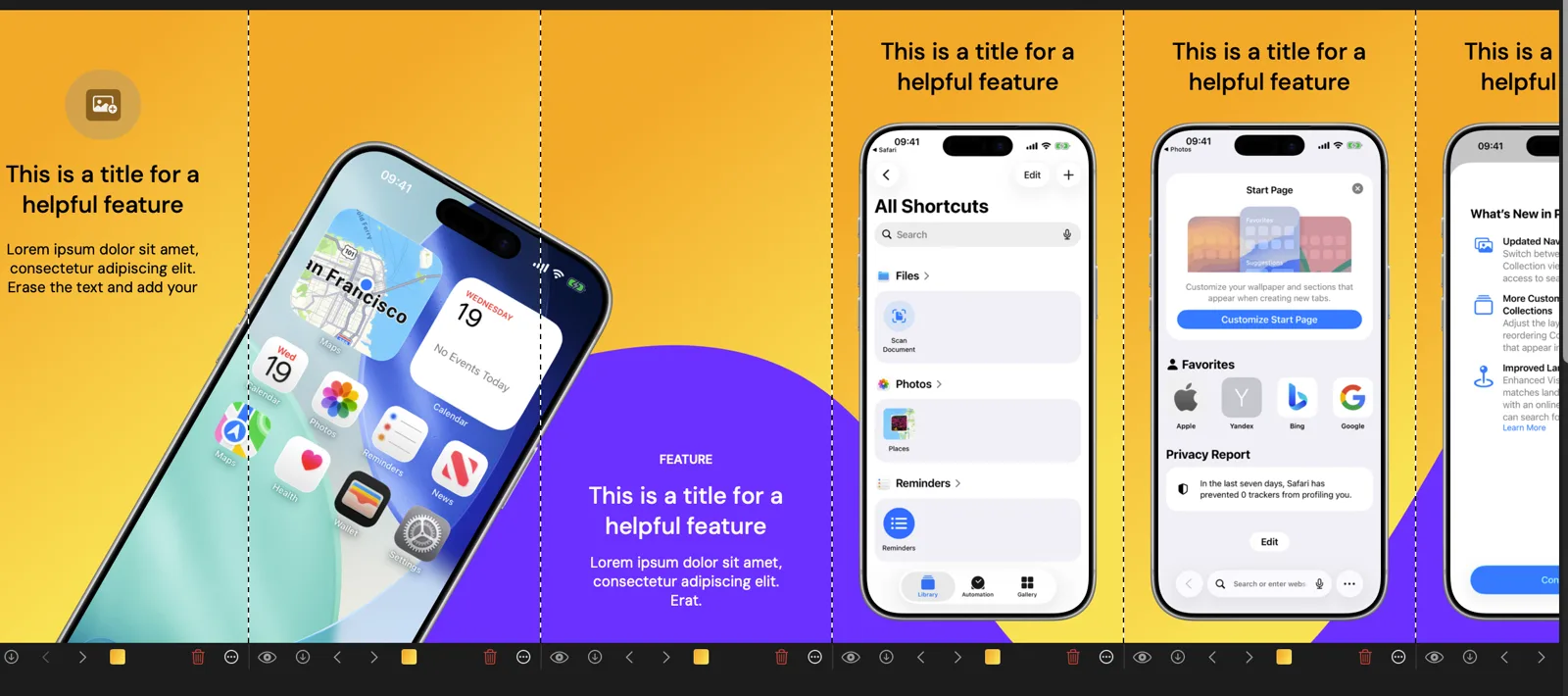
Figma has hundreds of screenshot and device mockup templates. Some are great for finding a visual direction. Some are old iPhone frames with nice shadows. Some look polished in the preview but become painful the moment you need 10 screenshots, 4 device sizes, and 12 languages.
This shortlist is based on the template categories that are currently easiest to find in Figma's own template pages and Figma Community files, including popular App Store screenshot templates, iPhone mockup kits, and broader device mockup collections. It is not a permanent download ranking, because Figma Community search order changes over time. Treat it as a practical guide to the template types worth checking before you build your actual screenshot workflow in Screenshot Bro.
Quick Shortlist
| Template type | Good for | Watch out for |
|---|---|---|
| App Store screenshot templates | Fast headline plus device-frame layouts | Often manual to resize, localize, and export |
| App Store plus Google Play templates | Cross-platform launch sets | Android tablet and Play Console details vary by template |
| Screenshot builder kits | Reusable caption, frame, and background components | Can become complex Figma systems to maintain |
| iPhone mockup packs | Marketing visuals, launch pages, social posts | May not match current App Store screenshot dimensions |
| Full device mockup collections | iPhone, iPad, Mac, Android, tablet, and laptop visuals | Usually made for presentation, not store upload |
| Official Apple product bezels | Accurate Apple-device marketing mockups | Need Apple marketing guideline compliance and manual setup |
1. App Store Screenshot Templates
Start with the direct category: Figma files built for App Store screenshots. One strong example is Median.co's 500+ App Store Screenshot Templates for Android and iOS Apps. Other Figma Community files in this category include Template for App Store Screenshots and App Store Screenshot Template. These are useful when you want the basic pattern: headline, device frame, background, and a sequence of feature slides.
The best ones are not just pretty. They already think in screenshot order. Look for a first slide that sells the app outcome, middle slides that explain features, and later slides for social proof, privacy, pricing, or platform support. If every slide is the same phone mockup with a different caption, the template will look polished but read flat.
2. App Store and Google Play Templates
If you ship both iOS and Android, look for cross-store files such as App Store and Google Play template or broader App Store screenshot files that include both iOS and Android examples. These are helpful because they remind you to design for more than one storefront: iPhone, iPad, Android phone, Android tablet, and sometimes feature graphics.
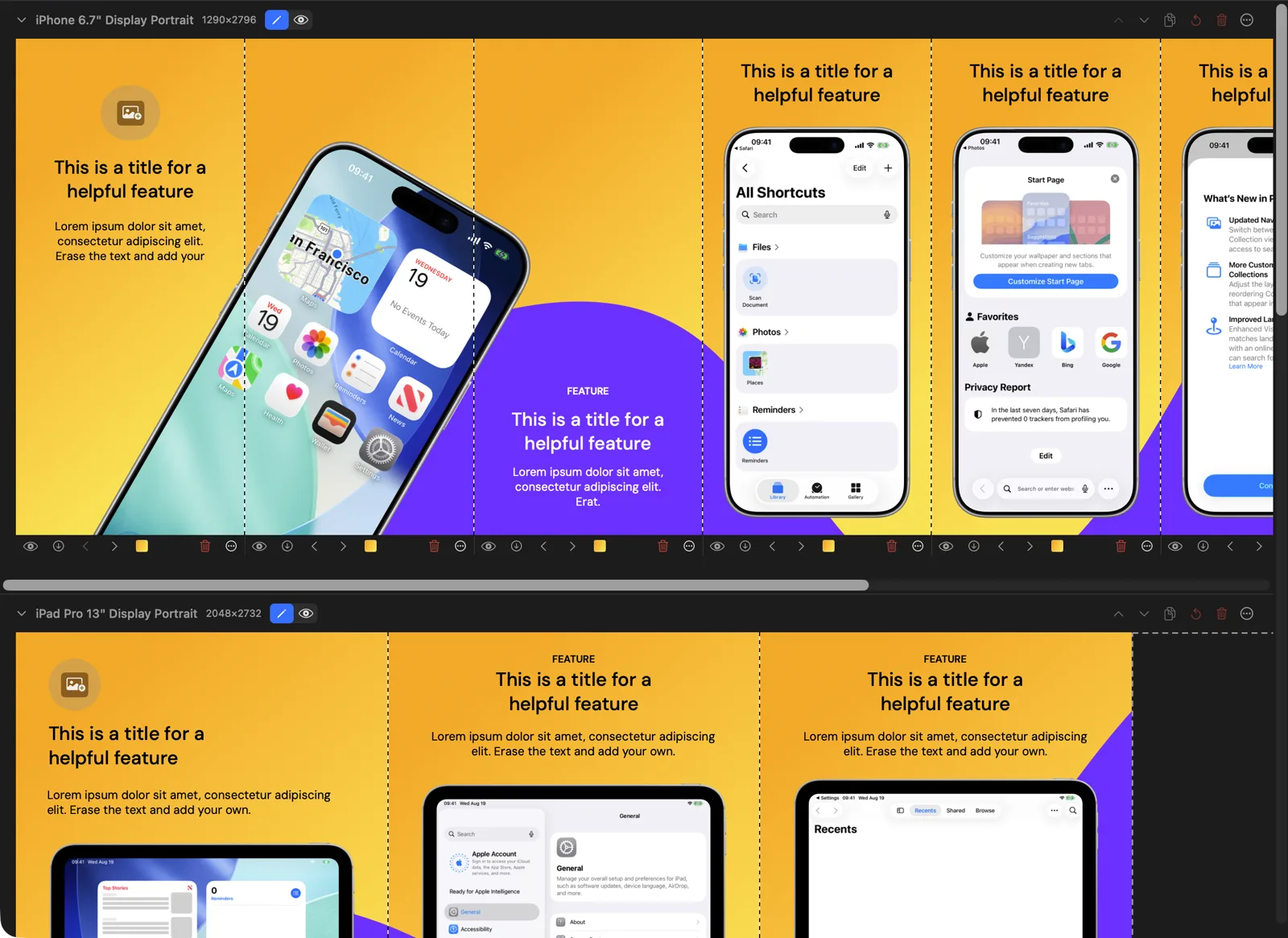
The limitation is maintenance. In Figma, every extra store size usually means more frames, more duplicate text, and more export naming discipline. Screenshot Bro is more appropriate once the design direction is set, because you can keep iPhone, iPad, Mac, Android phone, and Android tablet rows in one project and export organized store-ready folders.
3. Screenshot Builder Kits
Builder-style files, including AppStore - Screenshot Builder (iOS & iPad) and kits like FIGMA TO STORE, are the most useful if you already like working in Figma. They tend to provide reusable components for captions, devices, backgrounds, callouts, and slide variants.
These kits are worth studying even if you do not plan to use Figma for production. Notice how they structure repeated elements: consistent headline position, safe margins around the device, reusable background styles, and predictable slide order. Those ideas translate directly to Screenshot Bro templates.
4. Figma's iPhone Mockup Templates
Figma's own iPhone Mockups page is useful for broad device-frame inspiration. It lists categories such as iPhone 14 Pro and Pro Max mockups, iPhone 13 Pro mockups, minimal iPhone 14 mockups, Apple device mockups, 3D iPhone 12 mockups, vector-editable iPhone mockups, clay mockups, and hand-held iPhone mockups.
These are best for marketing pages, launch posts, pitch decks, and social media. They are not always the right foundation for App Store screenshots because many mockup files are optimized for presentation composition, not accepted App Store export sizes. Before you build a full screenshot set around one, check the actual canvas dimensions and whether the device frame matches the current devices you want to show.
5. Full Device Mockup Collections
Large collections like Device Mockups Ultimate Collection are popular because they cover many contexts: iPhone, iPad, MacBook, iMac, watch, Android phones, tablets, and sometimes laptop scenes. Search Figma Community for terms like "device mockup" and "iPhone mockup" and you will see how broad this category is.
Use these when the goal is a brand or launch asset, not a strict store screenshot. A realistic laptop on a desk can look great on a website, but it is usually the wrong asset for App Store Connect. For store screenshots, the device frame should support the message instead of becoming the message.
6. Official Apple Product Bezels
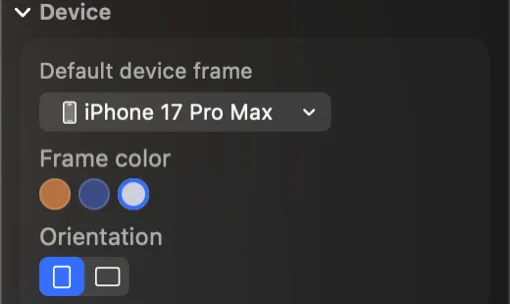
For Apple devices, the safest source of truth is still Apple Design Resources. Apple provides product bezels and other design resources, and the page specifically points developers to review marketing resources and identity guidelines when using product bezels in marketing materials.
The tradeoff is that official resources are not an App Store screenshot workflow. They give you accurate assets, but you still need to compose layouts, replace screenshots, manage localizations, export files, name them correctly, and upload them. Screenshot Bro is built around that production layer.
How to Judge a Figma Template
Before duplicating a Figma template, check the parts that will matter after the first nice preview:
- Does it include current App Store sizes, especially 6.9-inch iPhone?
- Does it cover iPad, Mac, or Android if your app needs them?
- Are text layers easy to edit and consistently placed?
- Can you swap screenshots without breaking masks or shadows?
- Does it use reusable components instead of one-off copied frames?
- Can it support longer translated text without redesigning every slide?
- Does export naming match the order you need in App Store Connect?
When to Stop Using Figma
Figma is excellent for exploration. It is less pleasant when the screenshot set becomes an operational asset. The pain usually appears after the first release: you need to swap every screen, update every headline, export every device size, repeat the work for every locale, and upload everything without mixing up order or dimensions.
That is the point where Screenshot Bro is more relevant. Use Figma templates to learn what good screenshot structure looks like. Then rebuild the final system in Screenshot Bro so the next update is a project edit, not a design cleanup sprint.
Recommended Workflow
- Browse Figma templates for visual direction, especially screenshot order, caption placement, and device treatment.
- Pick one structure: outcome first, then proof, workflow, key features, and trust signals.
- Rebuild the structure in Screenshot Bro with the device rows your app actually needs.
- Add real screenshots, short benefit-led headlines, and consistent backgrounds.
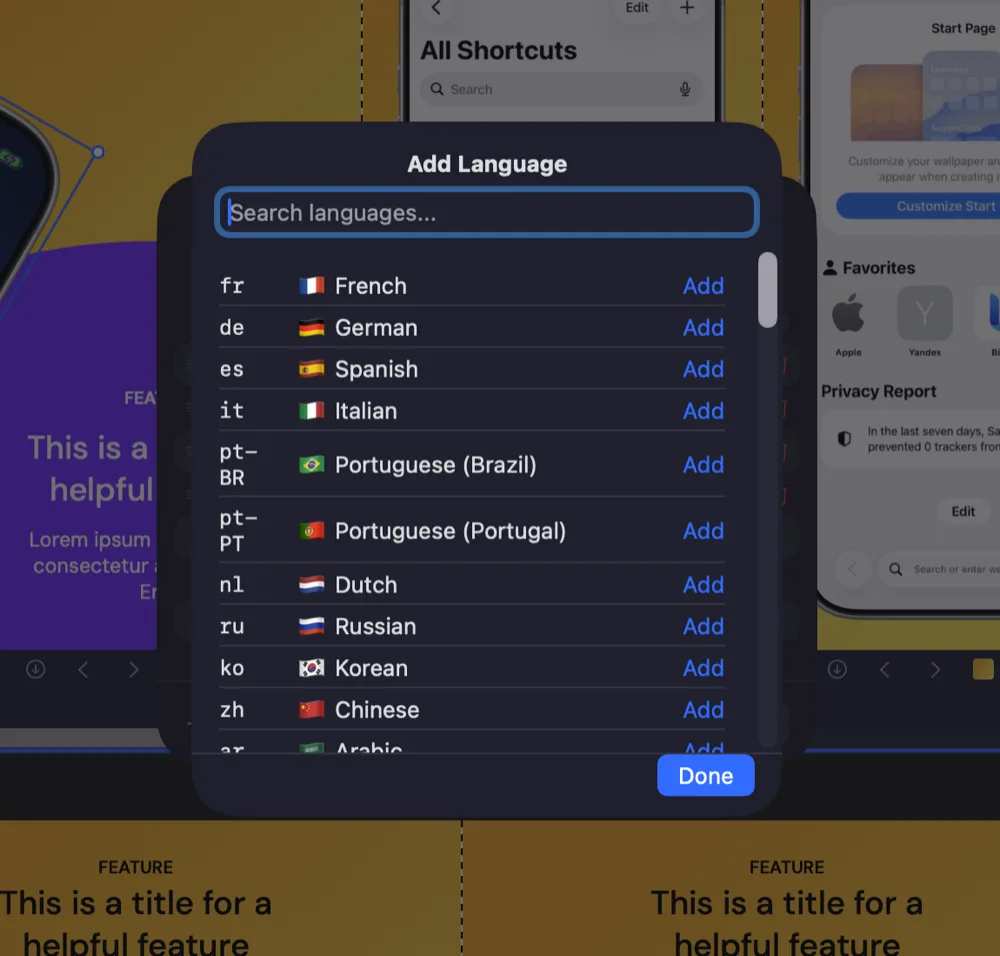
- Localize captions after the English version works, then adjust text positions for languages that need more space.
- Batch export or upload directly to App Store Connect when the full set is ready.
The best Figma template is not the one with the fanciest preview. It is the one that helps you make a clear decision about your screenshot system. After that, the production workflow matters more than the template file.