الدليل الشامل لتوطين لقطات شاشة App Store لجميع اللغات (2026)
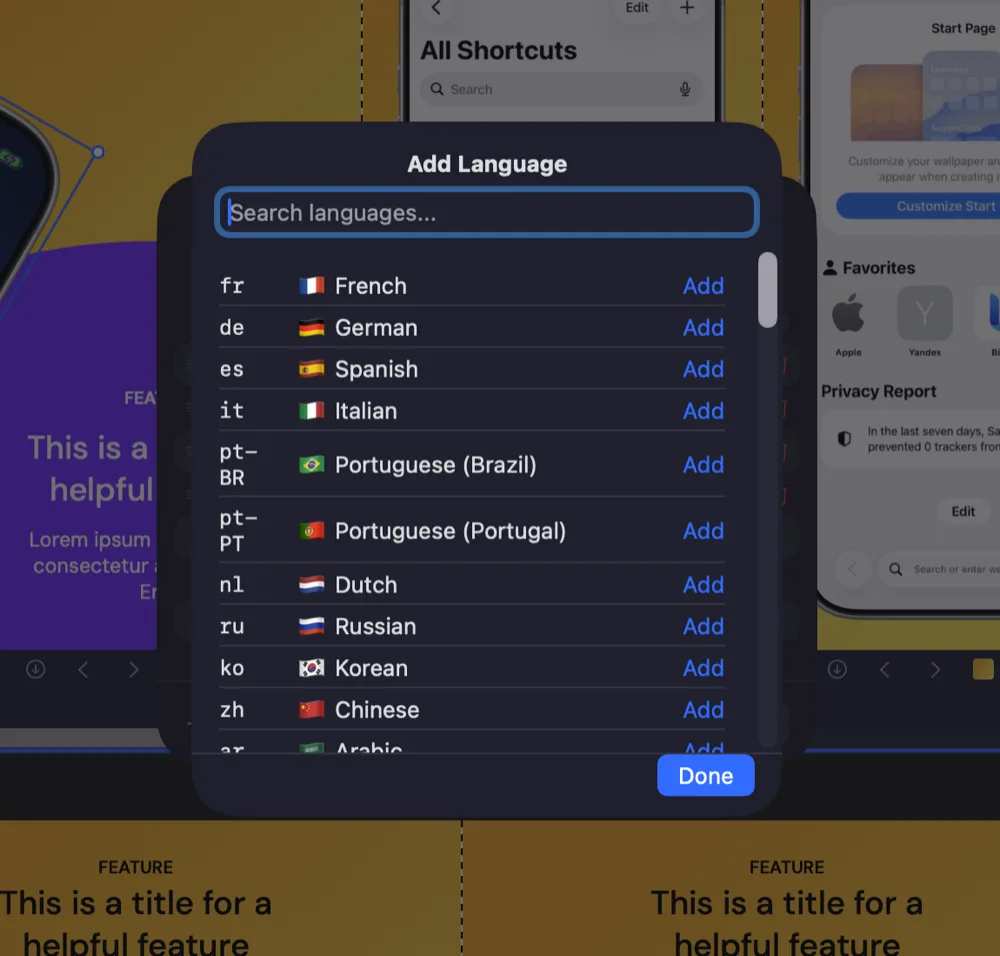
App Store screenshot localization is the process of adapting your screenshot set for each language, region, and storefront expectation. It is not just translation. A localized screenshot should use the customer's language, show relevant UI, respect text direction, keep the same store-approved dimensions, and still sell the same product promise.
That is why localizing App Store screenshots becomes messy so quickly. A simple set of 8 screenshots across 4 languages and 3 device sizes is already 96 exported images. Add custom product pages, Google Play screenshots, or seasonal campaigns and the workload multiplies again. The only sustainable answer is a repeatable localization system.
Why Localized Screenshots Matter
Apple explains that App Store metadata can appear in different languages depending on the user's App Store country or region, device language settings, localizations you added, and your primary language in App Store Connect. Apple also notes that users can search with localized keywords in supported countries or regions. In practice, your screenshots are part of that same first impression.
If the app name, subtitle, keywords, and description are localized but the first screenshot is still in English, the listing feels unfinished. For paid apps, subscriptions, finance, productivity, health, education, travel, and utility apps, that trust gap can be expensive. A localized screenshot set tells the visitor that the product was built for them, not merely made available in their country.
What App Store Screenshot Localization Includes
A good localization pass touches more than the headline text. Review these parts before exporting:
- Screenshot captions: translate the promise, feature names, proof points, and calls to action.
- In-app UI: capture the app in the same language when possible, especially when text-heavy screens are visible.
- Device sizes: keep every localized image in the same accepted dimensions as the primary language set.
- Layout: adjust line breaks, text boxes, and visual hierarchy for languages that expand or contract.
- Right-to-left languages: check alignment, reading order, punctuation, and mirrored composition for Arabic and Hebrew.
- Regional examples: localize currency, dates, names, maps, units, and screenshots that show culturally specific content.
Quick Workflow
| Step | Goal | Common mistake |
|---|---|---|
| Choose markets | Prioritize languages with real traffic or strategic value | Translating every language before proving demand |
| Write source copy | Create short, translatable captions | Using idioms that break in translation |
| Translate and adapt | Make each caption sound native and store-safe | Relying on literal machine translation only |
| Adjust layout | Preserve hierarchy after text expansion | Shrinking all text until it technically fits |
| Export by locale | Generate organized, upload-ready folders | Manual renaming and mixed device folders |
| Upload and QA | Confirm each locale and display family in App Store Connect | Checking only the primary language |
Start With the Right Markets
You do not need to localize every App Store language on day one. Start with languages that match a business reason: existing downloads, high-value countries, paid acquisition campaigns, support requests, competitor strength, or a product category that is already global.
For many indie apps, a practical first set is Spanish, French, German, Japanese, Korean, Portuguese, Chinese, or Arabic. The exact list depends on your analytics. A habit tracker and a fintech app will not have the same priority markets. Your goal is not language coverage for its own sake. Your goal is better conversion in markets that can move the business.
Write Screenshot Copy for Translation
The easiest localization problems are solved before anything is translated. Short source captions travel better. Clear feature names travel better. Concrete user outcomes travel better than jokes, slang, puns, and culture-specific references.
Write the English source copy as if another person will need to adapt it without reading your mind. For example, "Plan every week in minutes" is easier to localize than "Your weekly chaos, solved." The second line may sound punchier in English, but it gives translators less context and more room to miss the product value.
Plan for Text Expansion
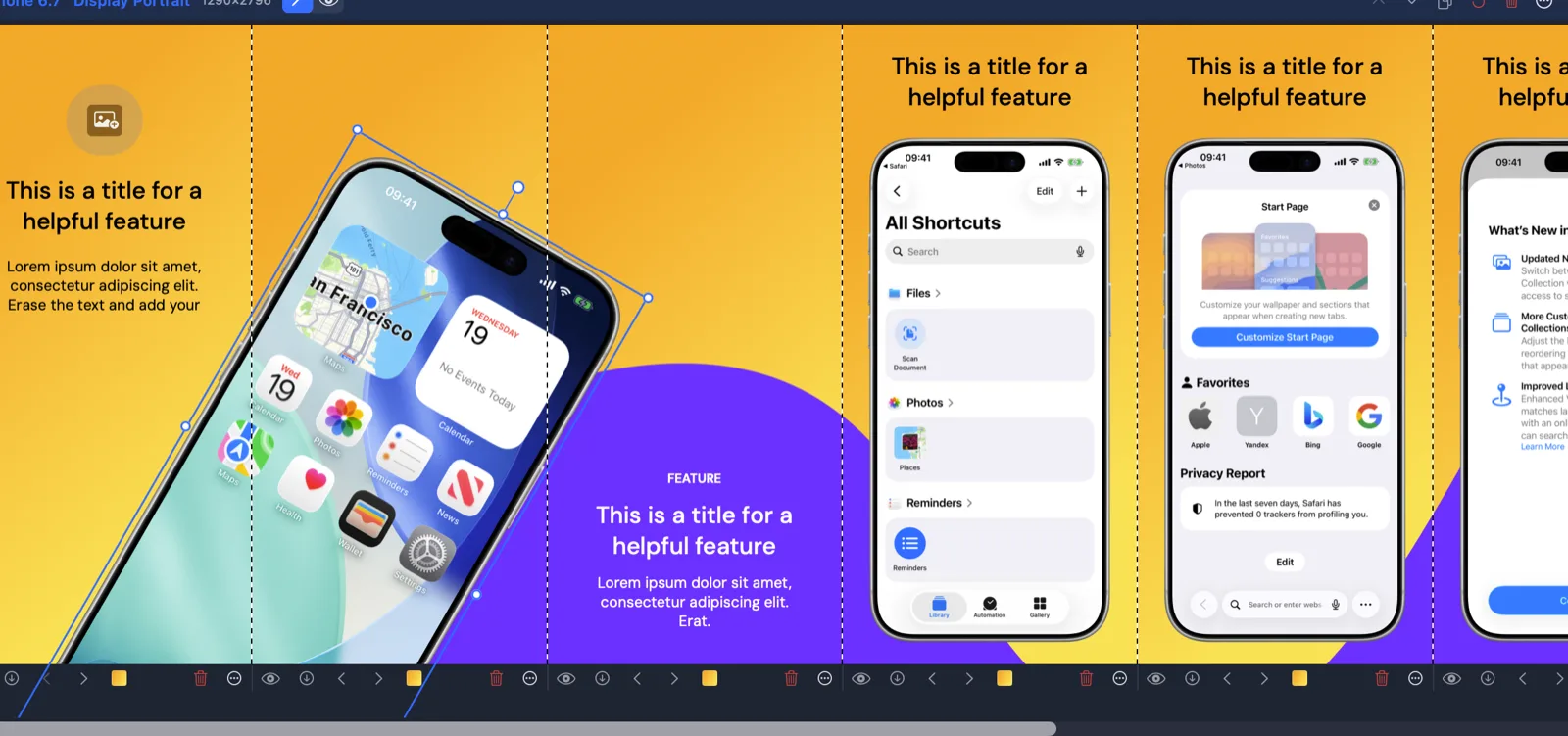
Localized App Store screenshots fail when the design assumes every language has the same word length. German, French, Spanish, Portuguese, and many Indic languages often need more space than English. Japanese, Chinese, and Korean may be shorter but need different line-breaking decisions. Arabic and Hebrew introduce right-to-left layout questions.
Do not solve expansion by blindly shrinking fonts. Instead, design with flexible text zones, generous margins, and captions that can wrap to two lines without colliding with the device frame. Keep the visual hierarchy stable: the first idea should still be readable first, and secondary text should still look secondary.
Handle RTL Screenshots Early
Right-to-left localization should not be the final QA surprise. If you plan to support Arabic or Hebrew, check it while the layout system is still flexible. Captions may need right alignment, device placement may need to move, and arrows or directional UI callouts may need different treatment.
The key is to separate the reusable design from locale-specific overrides. You should be able to keep the same screenshot concept while changing text alignment, position, and line breaks for RTL languages. Duplicating the entire screenshot set for every RTL adjustment creates a maintenance problem on the next release.
Keep App Store Connect Requirements in View
Apple's current screenshot specification says you must upload one to ten screenshots in .jpeg, .jpg, or .png format. Apple also lists accepted screenshot sizes by display family, including 6.9-inch iPhone, 6.5-inch iPhone, 6.3-inch iPhone, iPad, Mac, Apple Watch, Apple TV, and Apple Vision Pro. Check Apple's screenshot specifications before changing your export targets.
Apple's localization help also says new languages inherit screenshots and many properties from the primary language, while descriptions and keywords are exceptions. That inheritance is useful, but it is not a localization strategy. You still need to upload screenshots that match the target language and the same display requirements. Apple documents this in its App Store Connect localization guide.
Use a Locale Folder Structure
The export structure matters because it is what you hand to App Store Connect, fastlane, Transporter, or a teammate. A predictable structure prevents accidental uploads to the wrong language.
screenshots/
  en-US/
    iphone-6-9/
      01_overview.png
      02_tracking.png
      03_reports.png
    ipad-13/
      01_overview.png
  de-DE/
    iphone-6-9/
      01_overview.png
      02_tracking.png
      03_reports.png
    ipad-13/
      01_overview.png
Keep numbering consistent across locales. If screenshot 03 explains collaboration in English, screenshot 03 should explain collaboration in German, Japanese, and Spanish too. That makes QA faster and keeps experiments cleaner.
Do Not Translate Screenshots in Isolation
Screenshot localization should match the rest of the App Store listing: app name, subtitle, promotional text, description, keywords, app preview video, custom product pages, and in-app purchase names. If the first screenshot says one thing and the localized subtitle says another, the listing feels inconsistent even when every phrase is technically correct.
Build a small message map before translating. For each screenshot, define the goal, feature, source headline, visible UI screen, and any legal or category-specific terms. That gives translators context and gives reviewers a checklist.
QA Checklist for Localized Screenshots
- Every locale has the same screenshot count and order.
- Every exported file uses an accepted App Store screenshot size.
- Captions fit without awkward shrinking or clipped words.
- In-app UI language matches the screenshot caption where possible.
- Dates, currency, units, names, and maps make sense for the market.
- RTL locales have correct alignment, punctuation, and reading flow.
- Folder names and file names match the upload workflow.
- Custom product pages and campaign-specific variants are checked too.
How Screenshot Bro Helps
Screenshot Bro is built for the part of localization that usually slows teams down: repeated design edits, duplicated frames, file naming, device-specific rows, and batch export. Instead of copying a Figma frame for every locale, you can keep one screenshot system, add localized text overrides, adjust placement where needed, and export organized folders.
This matters most after the first release. The first localized export is work. The second, third, and tenth exports are where a system pays for itself. When the product UI changes or a caption gets rewritten, you update the source project and export the full localized set again.
Related Guides
For a shorter version of the workflow, read Localizing App Store Screenshots Without Losing Your Mind. For export dimensions, use the App Store screenshot size reference. If you are still building screenshots manually in design tools, read How to Design App Store Screenshots in Figma and compare that workflow with a dedicated screenshot localization workflow.
FAQ
What is App Store screenshot localization?
App Store screenshot localization means adapting your screenshot images for each language or locale. It includes translated captions, localized in-app UI, regional examples, right-to-left layout support, and store-ready exports for each required device size.
Do App Store screenshots need to be localized?
They are not required for every app, but they are strongly recommended when you sell in markets where users expect another language. Localized metadata can bring users to the listing; localized screenshots help the listing feel relevant once they arrive.
Can I use the same screenshots for every language?
You can, but it is usually weaker for conversion. App Store Connect may inherit screenshots from the primary language when you add a language, but inherited screenshots are still primary-language screenshots. A better workflow replaces the visible caption and, where possible, the app UI.
What is the best way to export localized screenshots?
Use one source project with per-locale text overrides and export by locale, device, and screenshot order. Avoid manually duplicating every design frame because it makes later product updates and translation fixes much slower.